
Exporting your iMessages, SMS, MMS and RCS conversations from the Mac Messages app is essential if you want readable backups or shareable documents.
Whether you need to keep accurate records for legal or professional use, or a personal backup of your precious conversations, getting your messages out of Apple's Messages app is easy with Messages Export Pro.

Messages Export Pro
Messages Export Pro is a powerful yet simple Mac app that lets you export conversations from the Mac Messages app to TXT, PDF, or CSV.
TXT exports and saving message attachments are free. PDF and CSV exports are available with an in-app purchase.

Free download on the Mac App Store
How to Export Messages from the Mac Messages App
Messages Export Pro exports conversations directly from the Messages app on your Mac. You don't need to connect your iPhone or create an iPhone backup - as long as the conversation appears in the Mac Messages app, you can export it.
Exporting your messages is quick and straightforward:
- Launch Messages Export Pro on your Mac.
- If prompted, allow access to Messages and Contacts.
- Your conversations will load automatically from the Mac Messages app.
- Select the conversation you want to export.
- Choose your export format: TXT, PDF, or CSV.
- Choose a save location on your Mac, then click “Open” to export the selected conversation.
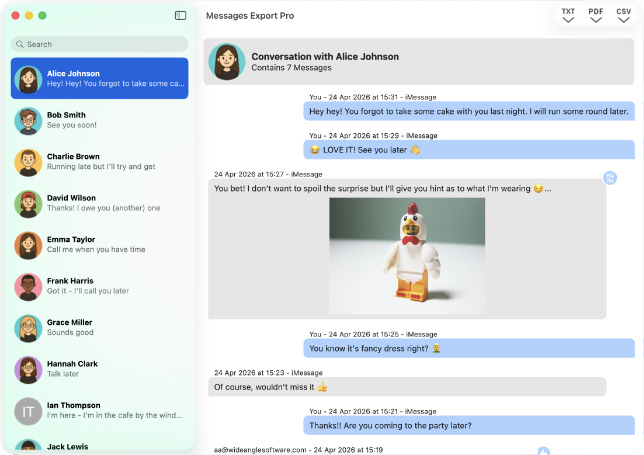
Your messages are saved directly to your Mac and are not uploaded to or shared with Wide Angle Software or any third party. Because the export process stays local, you can view, share, print, or archive your exported message files just like any other document on your computer.
Video: Full Messages Export Pro Walkthrough
Export Messages as PDF, CSV, or Text
Different situations call for different export formats. Messages Export Pro gives you the flexibility to save your conversations in the format that works best for you.
Exports into a Text file are perfect for simple backups. They include your message text and relevant metadata in a clean, lightweight format.
Here's an example of how a TXT export looks:

Generate beautifully formatted PDFs that display your conversations in familiar speech bubbles, making them ideal for sharing, printing, or record-keeping. Images are embedded directly in the PDF, along with any available transcripts for audio messages. You can save video and audio files individually.
Here's an example of how a PDF export looks:

CSV exports save your messages in a spreadsheet-friendly format. They're useful for analysis, documentation, or situations where a structured record is needed. This format is ideal for filtering by date, searching for specific keywords from iMessages in Excel, or calculating message frequency.
Here's an example of how a CSV export looks:

Exporting as TXT is completely free with Messages Export Pro - as is saving message attachments! You can unlock the PDF and CSV premium formats with an in-app purchase by going to Purchase > “PDF and CSV Exporting…”.
What messages can I export?
Messages Export Pro can access and export any conversations that are visible in the Mac Messages app. SMS, MMS, RCS and iMessage conversations are all supported.
Pro Tip: Make sure your full message history is available
If you don't see all your messages in the Mac Messages app, check that you're signed in with your Apple ID and that message syncing is enabled on your Mac and iPhone.
Follow our full guide on how to set up the Messages app on your Mac and sync your iPhone messages. This ensures your conversations stay synced between your devices and fully available on your Mac.
What's included in the export
Messages Export Pro supports all the content and features you'd expect from modern conversations. Use the table below to see what features each export format includes.
| Feature | TXT | CSV | |
|---|---|---|---|
| Text messages | ✓ | ✓ | ✓ |
| Sender details | ✓ | ✓ | ✓ |
| Timestamps (time and date) | ✓ | ✓ | ✓ |
| Emojis | ✓ | ✓ | ✓ |
| Images | ✗ | ✓ | ✗ |
| Polls | ✓ | ✓ | ✓ |
| Reactions | ✗ | ✓ | ✓ |
| Audio message transcriptions | ✓ | ✓ | ✓ |
You can also watch attached videos and listen to audio messages while previewing your conversations. While these dynamic content types aren't included in exports, they can be saved separately to your Mac, as detailed below.
Save attachments from your messages
You can save attached photos, videos, audio messages and files individually with Messages Export Pro. To do this:
- Hover your cursor over an attachment in your conversation.
- Click the save icon or “Save to Mac”.

Export messages from other apps directly from your iPhone
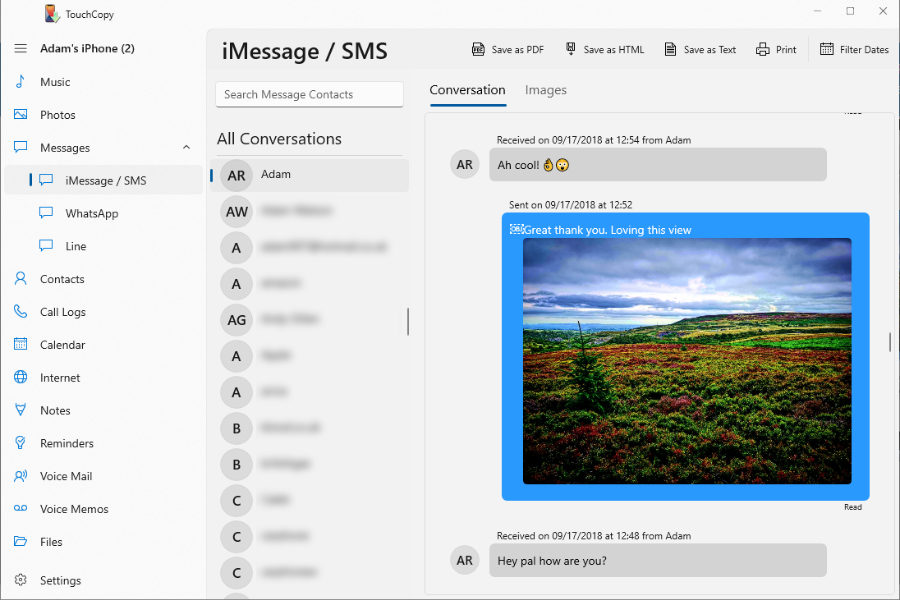
If you have an iPhone, you can export your messages directly from your phone to your Mac or PC with TouchCopy. Whereas Messages Export Pro is designed exclusively for exporting conversations from Mac Messages app, TouchCopy supports:
- SMS, MMS, RCS and iMessage conversations
- WhatsApp chats
- LINE conversations
- Message attachments, including photos, videos, audio messages and files
You can export your messages in a variety of formats, including PDF, HTML, CSV and TXT, making it easy to save your conversations in a way that suits your needs.
Learn how to export and print iPhone messages with TouchCopy →
Takeaways
Whether you need to document or print messages for legal reasons, business records, or personal safekeeping, Messages Export Pro gives you a simple way to save important conversations from your Mac.
You can quickly export conversations from the Mac Messages app as TXT, PDF, or CSV, with support for saving images, audio, and other attachments.
Messages Export Pro is free to download from the Mac App Store:

Want more tech tips like this?
Add us as a Preferred Source on Google.