
Troubleshooting a Droid Transfer Wi-Fi Connection

Most users can connect their phone and PC over Wi-Fi by simply scanning the QR code in Droid Transfer, using the Transfer Companion app on their phone. Detailed instructions are available in our Droid Transfer quick-start guide.
If you're experiencing connection issues, follow the troubleshooting steps below to ensure a stable connection.
How to Fix a Failed Connection to Droid Transfer
-
Ensure you're using the latest version of both Droid Transfer 2 AND Transfer Companion. Check for updates by going to Settings -> Updates in the software.
Note: If you are using Droid Transfer 1, you'll instead need an older version of the Android app to connect. Find out how to get Transfer Companion 4.
-
Keep your phone screen on and unlocked with the Transfer Companion app visible while using Droid Transfer. Avoid switching to other apps or returning to the home screen.
-
Connect your phone and PC to the same Wi-Fi network.
To check if your phone and PC are on the same Wi-Fi, ensure that your phone's IP address matches the IP address of your PC (An IP address has 4 parts, separated by a period. If the two devices are on the same network, the first 3 parts of their IP addresses will match).- Your PC's IP address is shown under the QR code in Droid Transfer.
- Your phone's IP address is displayed under the version number in the Transfer Companion app.

Tip: If you are using a VPN on any of your devices, you will need to turn it off as VPNs change the IP Address for your device.
-
Check your Windows Firewall settings to ensure Droid Transfer is allowed to connect. See our guide on how to configure Windows Firewall to allow apps.
-
Disable mobile data on your Android device while using Droid Transfer. Mobile data can occasionally prevent the connection. You can re-enable it after disconnecting from Droid Transfer.
-
Restart your PC after installing Droid Transfer, as this can resolve some connection issues.
-
Restart Transfer Companion on your phone, i.e. go to the phone task manager and swipe up to close Transfer Companion then start it again.
If the wireless connection still doesn't work after following these steps, try connecting your device using a USB cable instead.
Further support
If you're still unable to make a connection, please get in touch with our support team, providing Droid Transfer's log, and we'll be happy to help. To do this:
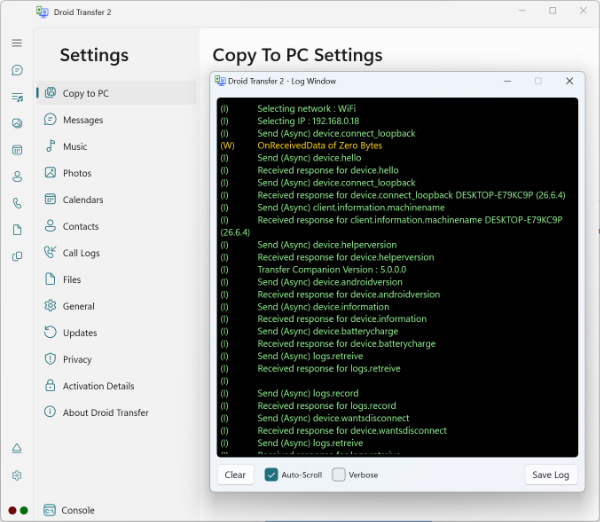
- Launch Droid Transfer on your computer and go to Settings > Console.
You can move the console window to the side of Droid Transfer, so you can see what you're doing. - Next, attempt connect your Android device with Droid Transfer via Wi-Fi by scanning the QR code on screen.
- If a connection isn't made after a couple of minutes, go to the Console window, and click "Save Log".
- Finally, email the log along with a description of the problem to our support team using our Contact Form

 Droid Transfer 2
Transfer and manage your Android device media from your Windows PC.
Learn more Download